We are pleased to announce the release of NoSQLBooster 10.1. This new version introduces support for custom AI models, enhanced command execution features, improved ObjectId field display with humanized timestamps, and an optimized dark theme. These updates aim to provide users with greater flexibility and a better overall user experience.
If you want to try NoSQLBooster 10.1 out now, you can get it from the following link.
NoSQLBooster 10.1 Download Link
The product will automatically enter the 30-day trial mode after a successful installation. At the end of the 30-day trial period, the product becomes a free edition. The free version is free for personal/commercial use but with limited functions.
Let's dive in and get an overview of what's coming in NoSQLBooster 10.1!
Although we are showing screenshots of NoSQLBooster for Windows, all these new features are available for Mac OS X and Linux as well.
What's new?
- Custom AI Model Support
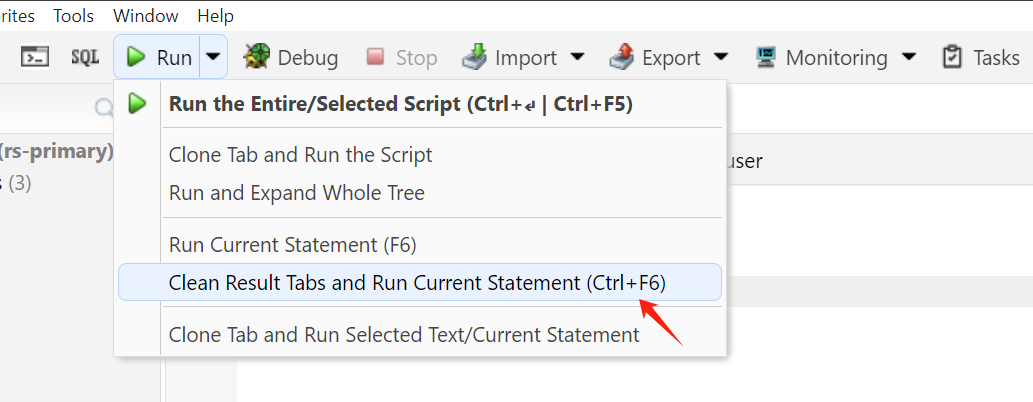
- Enhanced Command Execution (Ctrl+F6 / Cmd+F6)
- Enhanced ObjectId Field Display with Humanized Timestamps
- Optimized Dark Theme
- Bug Fixes
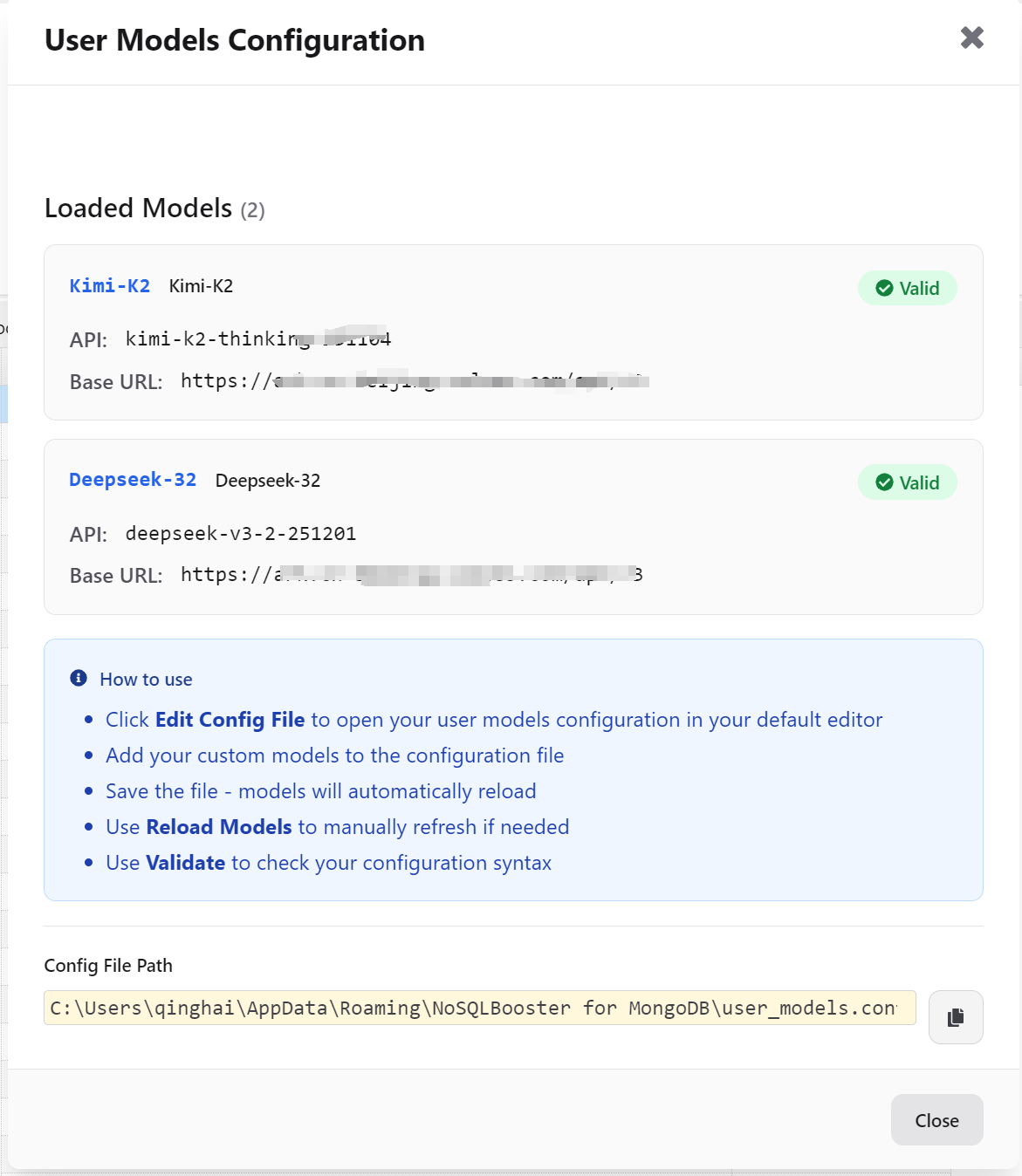
Custom AI Model Support
NoSQLBooster 10.1 empowers users to integrate their own AI models into the AI Helper feature. This enhancement provides greater flexibility for organizations that want to use their preferred AI providers or custom-trained models.
Adding Your Own AI Model
Users can now configure custom AI models through the application settings. This allows you to:
- Connect to alternative AI model providers
- Use organization-specific models
- Leverage private or custom-trained AI models for enhanced security and customization
- Maintain full control over your data and AI processing
To add a custom AI model, navigate to Menu -> Options -> AI Settings -> Edit/Add Models... and configure your model endpoint and API key.
Configuration File: user_model.config.js
Custom AI models are configured through the user_model.config.js file, which defines your custom model endpoints and parameters. Here's the configuration structure:
1 | /** |
This feature is particularly valuable for enterprises that require:
- Data privacy and security
- Integration with proprietary AI systems
- Custom model fine-tuning based on domain-specific knowledge
Enhanced Command Execution (Ctrl+F6 / Cmd+F6)
NoSQLBooster 10.1 introduces a new keyboard shortcut for executing scripts with automatic tab management. This command provides a streamlined workflow for developers on all platforms:
How It Works
- Windows/Linux: Press Ctrl+F6
- macOS: Press Cmd+F6 (or Mod+F6)
These shortcuts will:
- Close all currently open tabs
- Execute the current statement in the editor
- Display the results in a clean, focused environment
This feature is ideal for:
- Running complex statements without distraction
- Testing isolated queries in a clean workspace
- Improving focus during intensive development sessions
- Automating repetitive testing workflows
Usage Example
Simply position your cursor on the statement you want to execute and press the appropriate shortcut for your platform. The editor will close other tabs and run your statement immediately.
Enhanced ObjectId Field Display with Humanized Timestamps
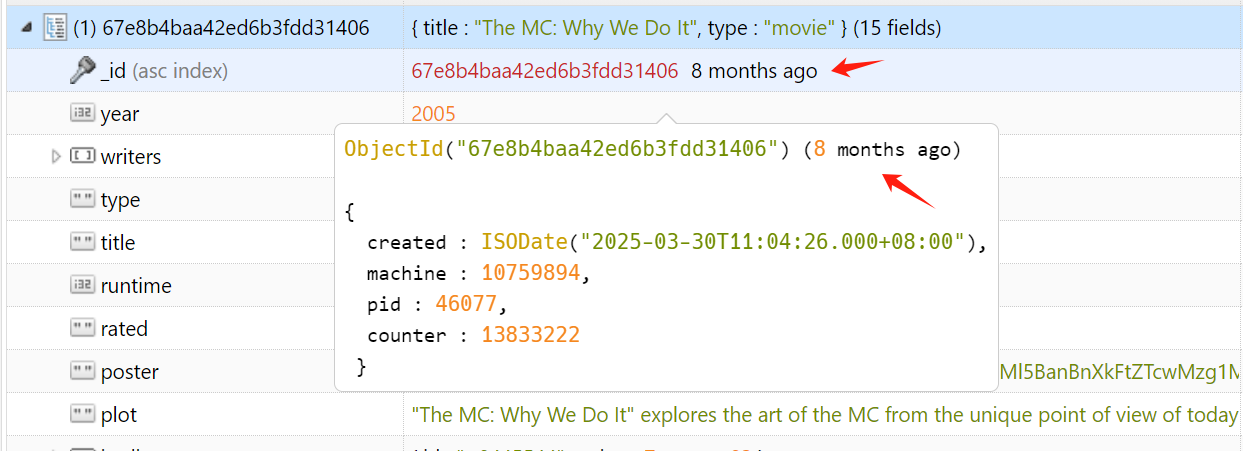
NoSQLBooster 10.1 improves how ObjectId fields are displayed in the treegrid and document viewers. ObjectIds now show both the formatted value and a human-readable relative timestamp.
New Display Format
ObjectId fields are now displayed as:
1 | ObjectId("507f1f77bcf86cd799439011") (a year ago) |
The relative time portion uses "humanized" formatting, making it easy to understand when documents were created at a glance. For example:
- ObjectId("...") (a few seconds ago)
- ObjectId("...") (5 minutes ago)
- ObjectId("...") (2 hours ago)
This enhancement makes it much easier to quickly assess document age without needing to manually calculate timestamps, especially useful when reviewing historical data or debugging time-sensitive issues.
Optimized Dark Theme
The dark theme has been completely redesigned and optimized in version 10.1 for better visual comfort and reduced eye strain during extended work sessions. Improvements include:
- Better contrast ratios for improved readability
- Refined color palette for reduced visual fatigue
- Optimized highlighting for syntax elements
- Improved visibility for UI controls and buttons
- Enhanced styling for data grid and tree views
Users can enable the dark theme through Menu -> Options -> Change Theme.
Bug Fixes
Fixed MongoDB Server Help Documentation
Resolved an issue where NoSQLBooster would attempt to load version-specific help documentation based on the connected MongoDB server version. For MongoDB versions below 4.4, the official online help documentation is no longer available. NoSQLBooster now falls back to using MongoDB 4.4 documentation for these older versions to ensure users can still access relevant command help information.
Fixed Field Display Bug in Index Creation Dialog
Resolved an issue where adding fields in the index creation dialog would display "[Object object]" instead of properly showing the field name. The dialog now correctly displays all added fields with their proper formatting.
Fixed Field Display Bug in Export Dialog
Fixed a bug in the export dialog where adding new fields would show "[Object object]" instead of the field name. Field selection now displays correctly across all export formats.
Patch Releases
Version 10.1.1
- Added, Add enableUtf8Validation option to advanced url options (more tab)
- Fixed, No fields for Username/Password in Connection Editor -> Authentication -> Basic Issue #24
- Fixed, Unable to Create Connection Manually, when there are no existing Connections Issue #25
- Fixed, Fully display the error details of BulkWriteError
Version 10.1.2
- Fixed, an infinite UI update loop bug when explaining specific aggregate statements Issue #26
- Fixed, spelling errors in UI tooltip messages
- Fixed, unable to open the UI configuration dialog under options when the AI Chat window is collapsed
- Fixed, mongosh fails to open in the Object Explorer when compression is enabled in connection options
Version 10.1.3
- Fixed, filter analysis and send script to main window not working in Schema Analyzer
- Fixed, error in Grid/Tree view when _id is a Legacy GUID
Version 10.1.4
- Added, replace mode to the UI of the Table/Tree view and Document Viewer. When updating a document, in addition to using updateOne, you can now also use replaceOne to overwrite the currently edited document.
- Fixed, a display bug where a large team license would incorrectly show as a trial license in the Main Menu -> Help."
Thank you!
Please visit our feedback page or click the “Feedback” button in the app. Feel free to suggest improvements to our product or service. Users can discuss your suggestion and vote for and against it. We’ll look at it too.